
MPTAAS Portal 2026-27: Login, Registration, Scholarship and Status Complete Guide
What is the MPTAAS Portal?
The MPTAAS Portal is an official online platform managed by the Tribal Welfare Department of Madhya Pradesh. It provides post-matric scholarships to students from SC, ST, and OBC categories. The portal helps eligible students apply for financial assistance directly online. All payments are made through Direct Benefit Transfer (DBT) to the student’s bank account. The official website is tribal.mp.gov.in. This guide covers everything you need to know about the MPTAAS Portal in 2026-27. It includes registration, login, scholarship application, renewal, status check, and common errors. All information in this guide is based on the official portal tribal.mp.gov.in. Always verify the latest updates directly on the official site before taking any action.
Overview and Purpose
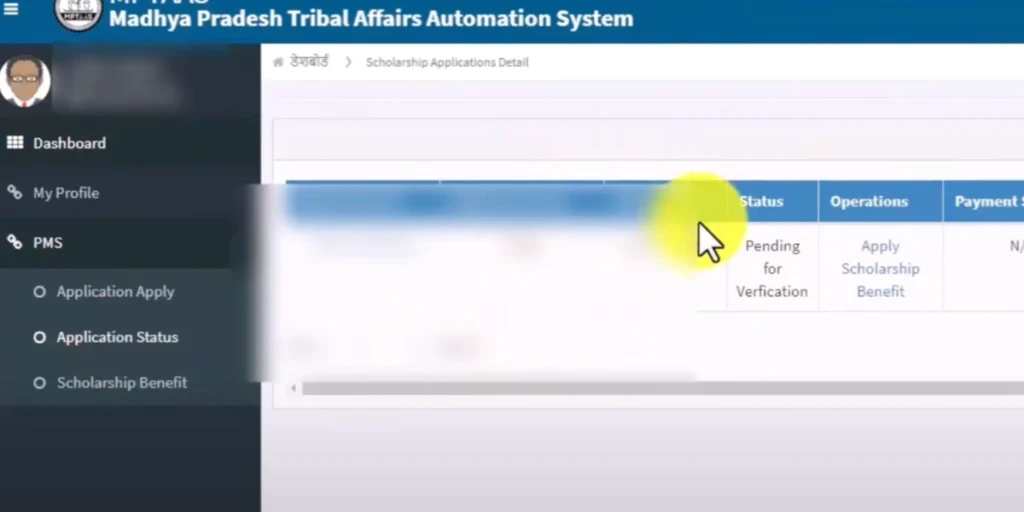
MPTAAS stands for Madhya Pradesh Tribal Affairs Automation System. It is an online scholarship management system for Madhya Pradesh students. The portal connects students, colleges, and government departments in one place. Students can apply, track, and receive scholarships through this single platform. The portal was created to make scholarship distribution faster and transparent. It removes the need for physical paperwork. All processes happen online — from application to payment.
What is MPTAAS 2.0: July 2025 Upgrade
MPTAAS 2.0 was launched in July 2025. It replaced the old MPTAAS portal completely. The new version has a faster and cleaner interface. Students can now track their applications in real time. eKYC verification is now mandatory for all applicants under MPTAAS 2.0. The login and authentication system has also been upgraded for better security. If you used the old portal before, you may need to re-register or update your profile on the new system.
Which Department Manages MPTAAS
The Tribal Welfare Department of Madhya Pradesh manages the MPTAAS portal. It operates under the Government of Madhya Pradesh. The department is responsible for scholarship approvals, payments, and portal maintenance. MPSEDC (Madhya Pradesh State Electronics Development Corporation) provides the technical support for the portal.
Who Can Use This Portal
The MPTAAS portal is for post-matric students in Madhya Pradesh. The following categories of students can apply:
Students must be enrolled in a recognized institution in Madhya Pradesh. The scholarship covers courses from Class 11 to PhD level. Both government and private institution students can apply.
MPTAAS Scholarship: Amount and Benefits
SC Students Scholarship Amount
SC students receive financial assistance based on their course level and hostel status. The scholarship covers tuition fees, maintenance allowance, and other charges. Payments are made directly to the student’s bank account through DBT.
ST Students Scholarship Amount
ST students are the primary beneficiaries of the MPTAAS portal. They receive scholarship support for tuition fees and living expenses. The amount varies based on course type and whether the student is a hosteller or day scholar.
OBC Students Scholarship Amount
OBC students can also apply for post-matric scholarships through the MPTAAS portal. The scholarship amount for OBC students is separate from SC and ST categories. Income limit for OBC applicants is stricter compared to SC and ST students.
Scholarship Amount by Course Level: Hosteller vs Day Scholar
The scholarship amount depends on two factors. First is the course level. Second is whether the student lives in a hostel or travels daily.
Hostellers receive a higher amount than day scholars. Below is the general breakdown by course level:
Class 11 and 12:
Graduation (General courses):
Graduation (Professional courses):
Post Graduation:
Professional courses (Medical, Engineering, Law, MBA, MCA):
PhD and Research:
Note: Exact amounts may vary by category and academic year. Always verify the current rates on tribal.mp.gov.in before applying.
Awas Yojana: Hostel Assistance
The Awas Yojana provides additional housing support to eligible ST students. Students living in government hostels may receive extra assistance for accommodation. This benefit is separate from the regular scholarship amount. Eligibility depends on hostel enrollment and category. Check the official portal for current Awas Yojana details.
How Payment is Sent: DBT Process
All scholarship payments are made through Direct Benefit Transfer (DBT). The amount is sent directly to the student’s Aadhaar-linked bank account. No cash payments are made.
The payment goes through four stages:
Stage 1: Student submits the application online on the MPTAAS portal.
Stage 2: The college or institute verifies the student’s details and approves the form.
Stage 3: The district or department gives final approval for the scholarship.
Stage 4: The amount is transferred directly to the student’s bank account via DBT.
This process usually takes 30 to 90 days after final approval. Make sure your bank account is active and Aadhaar-linked before applying.
Eligibility Criteria for MPTAAS Scholarship 2026-27
Basic Eligibility Conditions
To apply for the MPTAAS scholarship, students must meet these basic conditions:
- Must be a permanent resident of Madhya Pradesh
- Must belong to SC, ST, or OBC category
- Must have a valid Samagra ID (How to Find Your Samagra ID)
- Must be enrolled in a recognized post-matric institution
- Must have a valid Aadhaar card – Must have an active bank account linked to Aadhaar
- Must not be receiving any other central or state scholarship for the same course
Family Income Limit by Category
The family income limit is different for each category. Students must ensure their family income is within the allowed limit.
SC Students: Annual family income must be below Rs. 6 lakh
ST Students: Annual family income must be below Rs. 6 lakh
OBC Students: Annual family income must be below Rs. 1.5 lakh
Note: Income certificate must be issued by a competent authority. It must be current and valid at the time of applying.
Academic and Attendance Requirements
Students must meet academic requirements to remain eligible each year.
- Must have passed the previous qualifying examination
- Must maintain regular attendance as required by the institution
- Must not have any gap year without valid reason
- Renewal applicants must show consistent academic progress
Students with a gap year may still apply in some cases. A valid reason and supporting documents are required for gap year cases.
Additional Eligibility Conditions
These additional conditions also apply:
- Students can apply for only one scholarship at a time
- The course must be recognized by a government authority
- Students studying through distance or online mode may have limited eligibility verify on the official portal
- Students who have already completed one professional course are not eligible for a second professional course scholarship
Eligibility for Students with Disabilities
Students with disabilities from SC, ST, or OBC categories can also apply. They may receive additional benefits under specific schemes. A valid disability certificate from a recognized medical board is required. The certificate must show the disability percentage clearly. Check the official portal for current provisions for students with disabilities.
Documents Required for MPTAAS Scholarship
Mandatory Documents: Fresh Applicants
These documents are required for all new applicants:
Identity and Address:
Identity and Address:
Academic Documents:
Financial Documents:
Other Documents:
Documents Required for Renewal
Renewal applicants need these documents:
Note: Most personal details are pre-filled during renewal. Only academic and fee documents need to be updated each year.
Upload Guidelines and File Size Rules
Follow these rules when uploading documents:
Note: Most personal details are pre-filled during renewal. Only academic and fee documents need to be updated each year.
Common Document Mistakes to Avoid
These are the most common mistakes students make with documents:
Always double check every document before final submission. Incorrect documents will cause application rejection or delay.
Before You Apply: NSP and OTR Registration
What is NSP and Why it is Required
NSP stands for National Scholarship Portal. It is a central government platform for managing scholarships across India. Before applying on MPTAAS portal, students must complete their NSP registration first.
NSP registration is mandatory for all SC, ST, and OBC scholarship applicants. Without a valid NSP registration, your MPTAAS application will not be accepted. The official NSP website is scholarships.gov.in.
NSP registration links your personal details with the central government scholarship database. This ensures no student receives duplicate scholarships from different schemes at the same time.
What is OTR: One Time Registration
OTR stands for One Time Registration. It is a one-time process on the NSP portal. Students complete OTR before applying for any scholarship under NSP.
OTR creates a unique student profile on the national database. This profile is used across all scholarship applications. You do not need to register again for future years once OTR is complete.
To complete OTR you need:
Visit scholarships.gov.in to complete your OTR before starting your MPTAAS application.
How to Verify Samagra ID Before Applying
Samagra ID verification is required before you can register on the MPTAAS portal. Follow these steps to verify your Samagra ID:
Step 1: Visit samagra.gov.in
Step 2: Go to the Search Samagra ID section on the homepage.
Step 3: Enter your details, name, mobile number, or Aadhaar number.
Step 4: Check that your name, date of birth, and category are correct.
Step 5: Make sure your Samagra ID is eKYC verified. Step 6: Check that your Aadhaar is linked to your Samagra ID.
If any details are incorrect, get them corrected at your nearest Gram Panchayat or Ward Office before applying. Wrong Samagra details will cause your MPTAAS application to fail.
What Happens if NSP is Not Completed
If you skip NSP registration, these problems will occur:
- MPTAAS portal will not accept your application
- Your scholarship will not be processed even if submitted
- You may face delays in the current academic year
- Re-applying after the deadline may not be possible
Always complete NSP OTR registration first. Then verify your Samagra ID. Only after both steps are done, start your MPTAAS registration.
How to Register on MPTAAS Portal: New Applicants 2026-27
Step 1: Visit Official Portal tribal.mp.gov.in
Open your browser on a computer or mobile. Type the official URL: tribal.mp.gov.in Do not search on Google and click any random link. Always type the URL directly in the browser address bar. This ensures you are on the official government portal.
Step 2: Click New Beneficiary Profile Registration
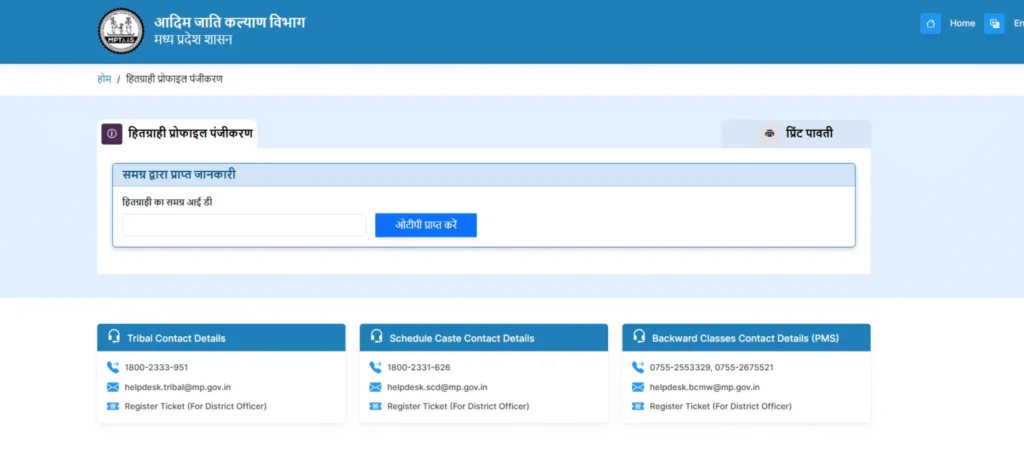
On the homepage, look for the scholarship section. Find the option that says “New Beneficiary Profile Registration.” Click on this option to start your registration process. This option is only for first-time applicants on the portal. If you have registered before, use the login option instead.
Step 3: Enter Samagra ID and Verify Details
Enter your 9-digit Samagra Member ID in the required field. The portal will fetch your basic details from the Samagra database. These details will appear on screen automatically. Check the following details carefully:
- Full name
- Date of birth
- Gender
- Category (SC, ST, or OBC)
- Address
- Mobile number
If any detail is incorrect, stop the registration process. Get the details corrected on samagra.gov.in first. Then restart your MPTAAS registration.
Step 4: Fill Personal and Family Details
After Samagra verification, fill in your personal and family details.
You will need to enter:
- Father’s name and occupation
- Mother’s name and occupation
- Annual family income
- Number of family members
- Current residential address
- District and block details
Make sure all details match your official documents exactly. Any mismatch may cause verification failure later.
Step 5: Add Bank Details and Link Aadhaar
Enter your bank account details carefully.
Required bank details:
- Account holder name
- Bank account number
- IFSC code
- Bank name and branch
The account must be in the student’s own name. Joint accounts are generally not accepted. Make sure the account is Aadhaar-linked and active.
Enter your 12-digit Aadhaar number. The portal will verify your Aadhaar details automatically. Your name on Aadhaar must match your Samagra ID exactly.
Step 6: Create Password and Verify via OTP
Create a strong password for your MPTAAS account.
Password must include:
- At least 8 characters
- One uppercase letter
- One lowercase letter
- One number
- One special character
After creating the password, an OTP will be sent to your Aadhaar-linked mobile number. Enter the OTP in the required field. Click Submit to complete account creation. Save your User ID and password in a safe place. Do not share your credentials with anyone.
Step 7: Complete Scholarship Application Form
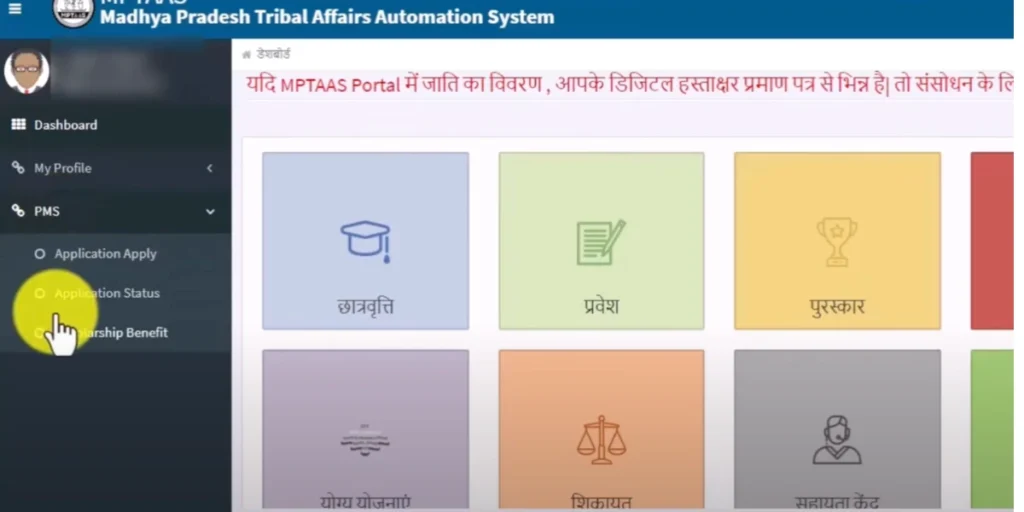
After registration, log in to your new account. Go to the scholarship application section in your dashboard. Fill in your academic details:
- Current institution name
- Course name and level
- Admission year
- Roll number
- Whether hosteller or day scholar
Upload all required documents as listed earlier. Review every detail before final submission. Click Submit Application. Note down your Application ID. You will need this ID to track your application status later.
Important Tips for New Applicants
Keep these tips in mind before and during registration:
Common Registration Errors and Solutions
Error 1: Invalid Samagra ID Solution: Check that you are entering the 9-digit Member ID. Do not enter the 8-digit Family ID. Verify your Samagra ID on samagra.gov.in first.
Error 2: Aadhaar mismatch: Solution: Your name on Aadhaar must match Samagra ID exactly. Get the name corrected on either portal before proceeding.
Error 3: OTP not received: Solution: Check that your mobile number is linked to Aadhaar. Wait 2 to 3 minutes before requesting OTP again. Move to an area with better network signal.
Error 4: Website not loading: Solution: Clear your browser cache. Try a different browser such as Chrome or Firefox. Try again after peak hours — preferably early morning.
Error 5: Documents not uploading: Solution: Check file size — must be under 200KB. Convert to JPG or PDF format. Reduce file size using a free online tool if needed.
How to Login to MPTAAS Portal: Existing Users
Types of Login Accounts
The MPTAAS portal has four types of login accounts. Each account type is for a different user role. Use only the login type that applies to you.
- Student Login: This is for scholarship applicants. Students use this login to apply, track status, and manage their scholarship profile. This is the most commonly used login type.
- OBC / SC / ST Login: This is a category-specific login. Some category-based scholarship processes require this login. Check the portal homepage to see if this applies to your category and process.
- Institute and College Login: This login is for colleges and institutions only. Institutes use this to verify and approve student applications. Without institute approval, no student application can move to the next stage.
- Teacher and Administrator Login: This is for department staff and administrators only. They manage approvals, reports, and portal operations. This login is not available to general students.
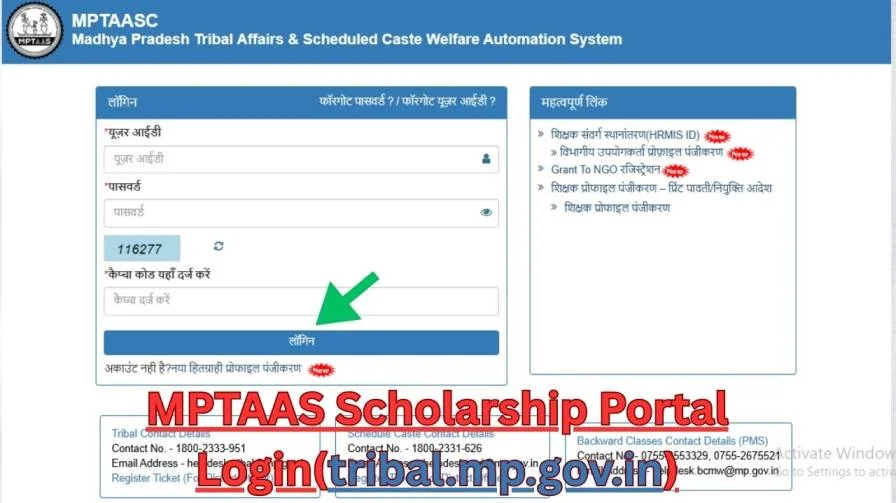
Step-by-Step Login Process 2026-27
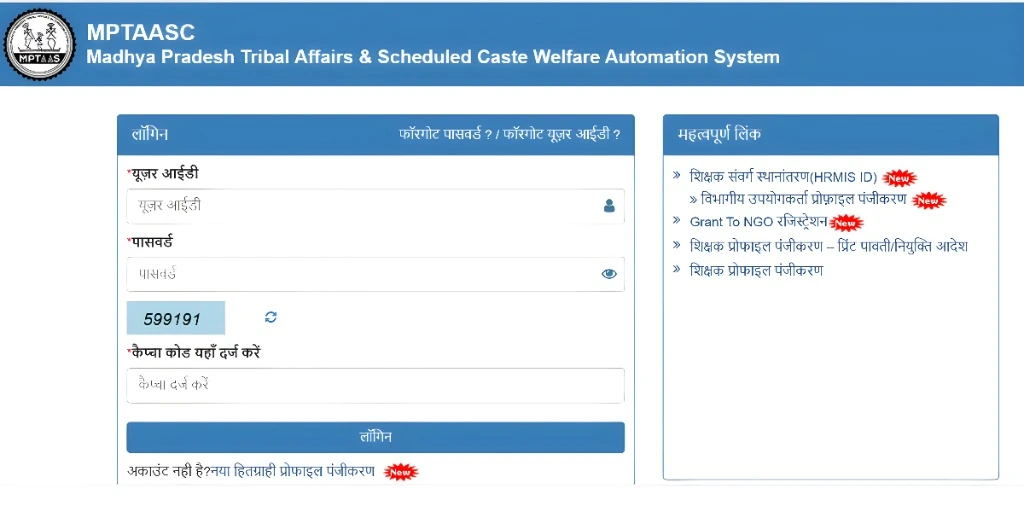
Follow these steps to login to the MPTAAS portal:
Step 1: Open your browser. Type tribal.mp.gov.in directly in the address bar. Do not search on Google and click random links. Do not use saved links from unofficial websites.
Step 2: Find the Login button on the homepage. Click on it to open the login page.
Step 3: Select your login type. Choose Student, Institute, or Department login as applicable to you.
Step 4: Enter your User ID. This is the ID you created during registration. User ID is case sensitive in some cases. Enter it exactly as created.
Step 5: Enter your password. Type carefully. Password is always case sensitive. Make sure Caps Lock is off before typing.
Step 6: Complete the captcha if shown on screen. Enter the characters exactly as displayed. Request a new captcha if it is unclear.
Step 7: Click the Login button. Wait for the page to load. Do not click multiple times. Multiple clicks can cause session errors.
Step 8: Your dashboard will open after successful login. You can now access your application, profile, and scholarship details.
- User ID is entered correctly
- Password is correct
- Caps Lock is off
- Captcha is entered correctly
After three failed attempts, your account may get temporarily locked. Wait 30 minutes before trying again.
Mobile vs Desktop Access
You can access the MPTAAS portal on both mobile and desktop devices.
- Recommended for filling forms
- Better for uploading documents
- Easier to review all details
- Fewer loading and display issues
- More stable for long sessions
- Use Chrome or Firefox browser
- Useful for checking status
- OTP verification is easier on mobile
- Good for quick profile checks
- Some form fields may be harder to fill on small screens
- Use Chrome or Firefox mobile browser for best results
- Avoid using in-app browsers such as WhatsApp browser
For registration and form submission, always use desktop or laptop. For status check and simple tasks, mobile works fine.
If portal does not load on mobile, switch to desktop mode in your mobile browser settings. This often resolves display issues on mobile.
Security Tips for Safe Login
Follow these security tips every time you login:
Tip 1: Always use official URL. Type tribal.mp.gov.in directly. Check URL before entering any login details. It must start with https://tribal.mp.gov.in
Tip 2: Never share credentials. Never share your User ID or password with anyone. This includes friends, classmates, and cyber cafe staff. The official portal will never ask for your password by phone, SMS, or WhatsApp.
Tip 3: Always logout after use. Click the Logout button after completing your work. Do not just close the browser tab. Closing without logout can leave your account accessible to the next person.
Tip 4: Avoid public computers. Do not login from cyber cafes or shared computers. If you must use a public computer, clear the browser history and cache after use. Always logout before leaving.
Tip 5: Change password regularly. Update your password every 2 to 3 months. Do not use the same password for multiple accounts. Use a strong password with letters, numbers, and special characters.
Tip 6: Check for unusual activity. If your account shows applications or changes you did not make, change your password immediately. Then contact the helpline to report the issue.
Tip 7: Do not save password on shared devices. Browsers offer to save passwords. Never allow this on a shared or public device. Only save passwords on your personal device.
How to Apply for MPTAAS Scholarship Online
Access PMS Dashboard After Login
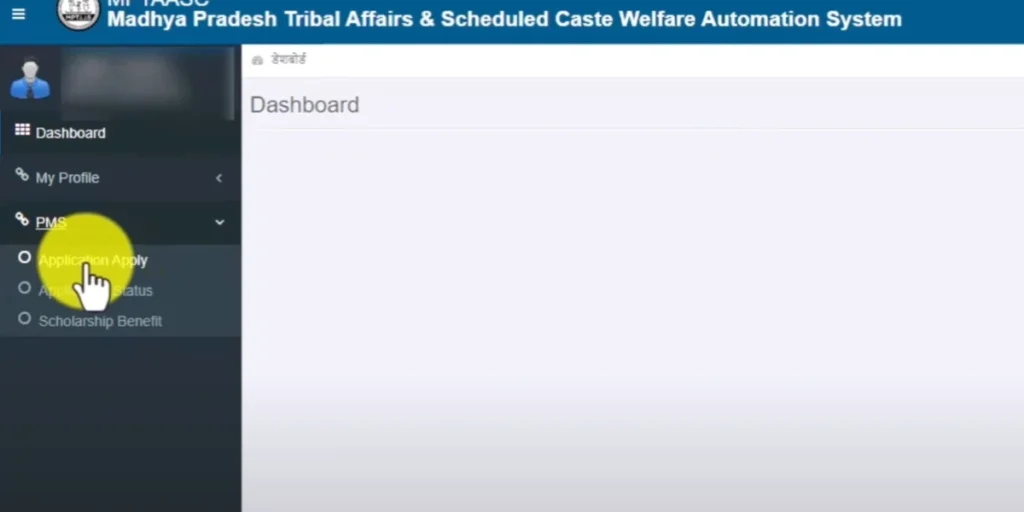
PMS stands for Post Matric Scholarship. After login, your PMS dashboard will open automatically. The dashboard shows all available options for your account.
On the dashboard you will see:
- Application status
- Scholarship application form
- Document upload section
- Profile update option
- Payment status
- Grievance section
If your dashboard does not load, refresh the page once. If the problem continues, clear your browser cache and try again.
Steps to Fill Fresh Scholarship Application
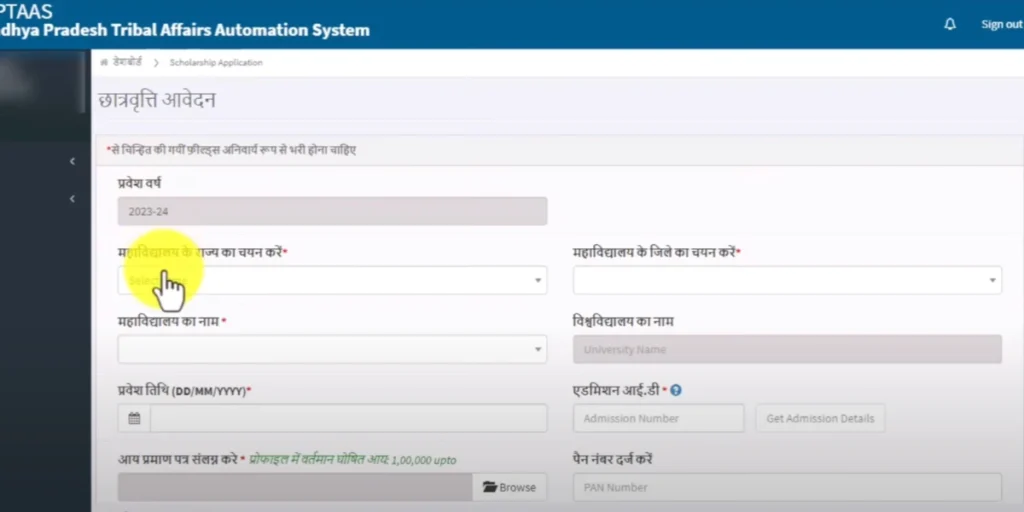
Follow these steps to fill your scholarship application:
Step 1: On your dashboard, click on “Apply for Scholarship” or “New Application.”
Step 2: Select your scholarship category. Choose SC, ST, or OBC as applicable.
Step 3: Verify your pre-filled personal details.
These are fetched from your Samagra ID and registration. Check name, date of birth, category, and address carefully.
Step 4: Fill in your academic details. Enter the following:
- Institution name
- Course name
- Course level (Class 11, graduation, PG, etc.)
- Admission year
- Roll number or enrollment number
- Whether hosteller or day scholar
Step 5: Fill in your fee details. Enter the following:
- Tuition fee amount
- Other charges as applicable
- Fee receipt number
- Fee receipt date
Step 6: Upload all required documents. Follow the upload guidelines mentioned earlier. Check each document after uploading to confirm it is clear.
Step 7: Review the complete form. Read every field carefully before submission. Check that all amounts and details are correct.
Step 8: Click Submit Application. A confirmation message will appear on screen.
Note your Application ID immediately.
How to Save Your Application ID
Your Application ID is generated after successful submission. This ID is very important.
Use your Application ID to:
How to save your Application ID:
- Write it down immediately after submission
- Take a screenshot of the confirmation page
- Note the date of submission as well
- Save it in a secure location
If you lose your Application ID, login to your account and check the application history section. Your submitted applications will be listed there with their IDs.
Tips for Smooth Application
Keep these tips in mind when filling your application:
- Complete NSP OTR registration before starting
- Have all documents ready before you begin
- Use a stable internet connection
- Do not close the browser while filling the form
- Save each section before moving to the next
- Do not fill the form in multiple sessions if possible
- Submit before the deadline, do not wait for the last day
- Check your email and mobile for confirmation messages
- If the form times out, login again and check application history first before resubmitting
How to Renew MPTAAS Scholarship for 2026-27
When is Renewal Required
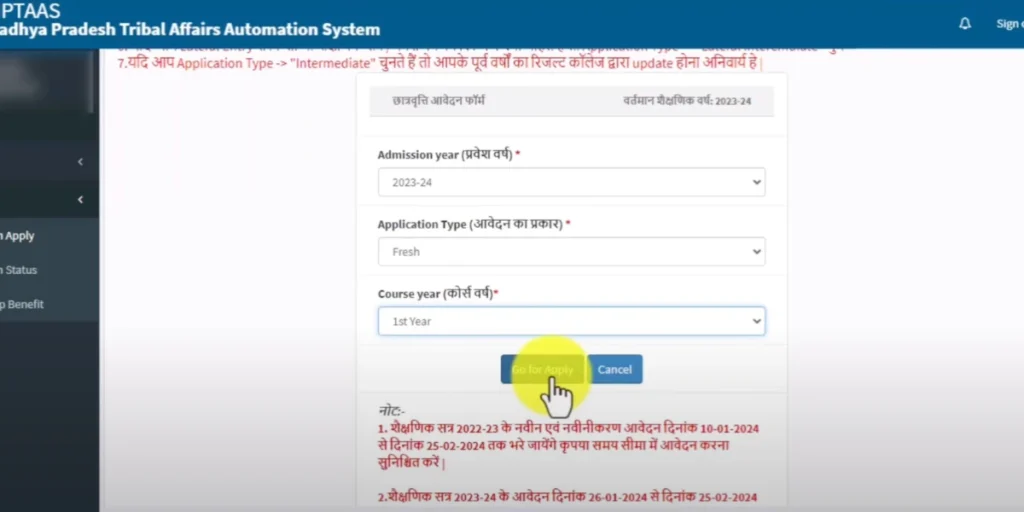
Renewal is required every year after the first year of scholarship. You do not need to register again. You only need to update your academic details for the new year.
Renewal is required in these cases:
- You received the scholarship last year and are continuing the same course
- You are in 2nd, 3rd, or 4th year of your current course
- Your course duration is more than one year
Renewal is NOT required if:
- You are applying for the first time
- You have changed your course or institution
- You had a gap year and are restarting fresh
In case of course or institution change, submit a fresh application instead of renewal.
Documents Needed for Renewal
These documents are required for renewal applicants:
- Marksheet of previous year examination
- Attendance certificate from current institution
- Fee receipt for current academic year
- Bonafide certificate for current year
- Updated income certificate if the previous one has expired
- Bank account details, must be same as registered on portal
- Aadhaar card, only if any update was made
Note: Most personal details are already saved in your account. You only need to update academic and fee documents for the new year.
Step-by-Step Renewal Process
Follow these steps to renew your MPTAAS scholarship:
Step 1: Visit tribal.mp.gov.in Open the official portal in your browser.
Step 2: Login to your account. Use your existing User ID and password.
Step 3: Go to your PMS dashboard. Look for the renewal option. It may appear as “Renew Application” or “Scholarship Renewal 2026-27.”
Step 4: Click on Renew Application. Your previous year details will appear on screen.
Verify all pre-filled information.
Step 5: Update your academic details. Enter current year information:
Step 6: Update fee details. Enter current year fee receipt number and amount. Upload the new fee receipt document.
Step 7: Upload required documents. Upload marksheet of previous year. Upload attendance certificate. Upload bonafide certificate. Check all uploads are clear and readable.
Step 8: Review all details carefully. Make sure no field is left empty. Check that uploaded documents are correct.
Step 9: Submit the renewal application.
Note your new Application ID. Take a screenshot of the confirmation page.
Common Renewal Mistakes to Avoid
These are the most common mistakes during renewal:
Mistake 1: Submitting a fresh application instead of renewal. This creates a duplicate record and may delay your payment. Always use the renewal option if you received scholarship in the previous year.
Mistake 2: Not updating fee details. Last year’s fee receipt is not valid for renewal. Always upload the current year’s fee receipt.
Mistake 3: Using expired income certificate. Income certificate older than one year is not accepted. Get a fresh certificate before renewal if needed.
Mistake 4: Changing bank account without updating on portal. If you have a new bank account, update it in your profile first. Then proceed with renewal.
Mistake 5: Waiting until the last date to renew. Portal traffic is high near the deadline. Submit your renewal at least two weeks before the last date.
Mistake 6: Not checking pre-filled details. Because, some details may be outdated from last year. So, always review every section before submission.
How to Check MPTAAS Scholarship Status Online
Step-by-Step Status Check Process
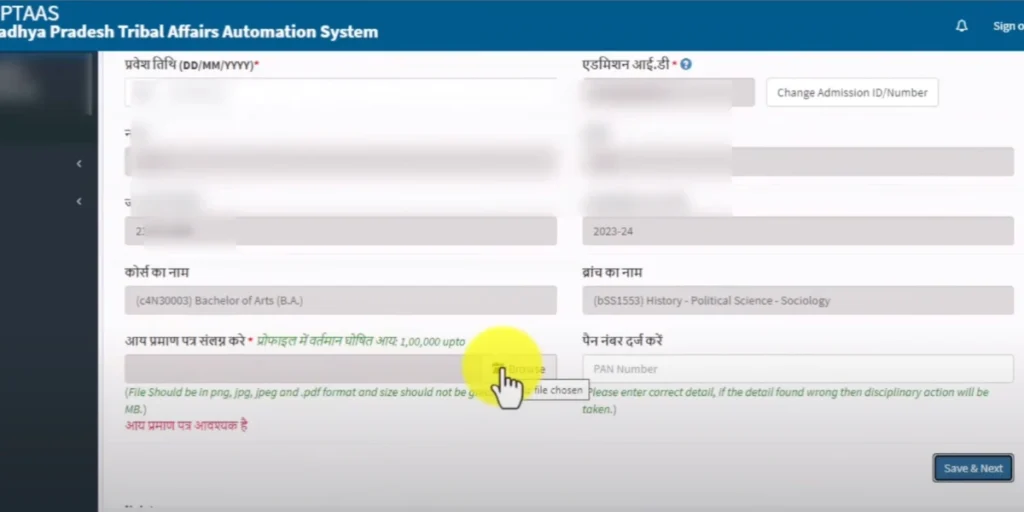
Follow these steps to check your scholarship status online:
Step 1: Visit tribal.mp.gov.in Open the official portal in your browser.
Step 2: Look for the scholarship status section on the homepage. This option is available without login in most cases.
Step 3: Select your category. Choose SC, ST, or OBC as applicable.
Step 4: Enter your application details. You will need one of these:
Step 5: Enter the captcha if shown on screen.
Step 6: Click Search or Check Status button.
Step 7: Your application status will appear on screen.
Note the current status and any pending actions required.
Check Status by Category: OBC, SC, ST
Status check process is similar for all categories. However, some portals have separate status pages by category.
SC Students: Check status through the SC scholarship section on the portal. Your status will show institute verification and department approval stages.
ST Students: ST scholarship status is managed directly by the Tribal Welfare Department. Status updates may take longer for remote area students.
OBC Students: OBC scholarship status is handled by the OBC Welfare Department. Check the OBC-specific section on the portal for accurate status.
If you cannot find category-specific status, use your Application ID on the main status check page.
Understanding Payment Stages
Your application goes through four stages before payment.
Stage 1: Student Submits Application You have filled and submitted the application online. Status will show: Application Submitted
Action required: None, wait for institute verification.
Stage 2: Institute Verifies Your college or institution reviews your application and documents. Status will show: Under Institute Verification
Action required: Contact your college if this stage takes more than 15 days.
Stage 3: Department Approves The district or state department gives final approval. Status will show: Under Department Approval
Action required: None, wait for DBT processing.
Stage 4: DBT Transfer to Bank Account The scholarship amount is transferred directly to your bank account. Status will show: Payment Processed or Amount Disbursed
Action required: Check your bank account for the credited amount. If your status is stuck at any stage for more than 30 days, contact the helpline or your college coordinator.
How to Check NPCI Status for Payment Verification
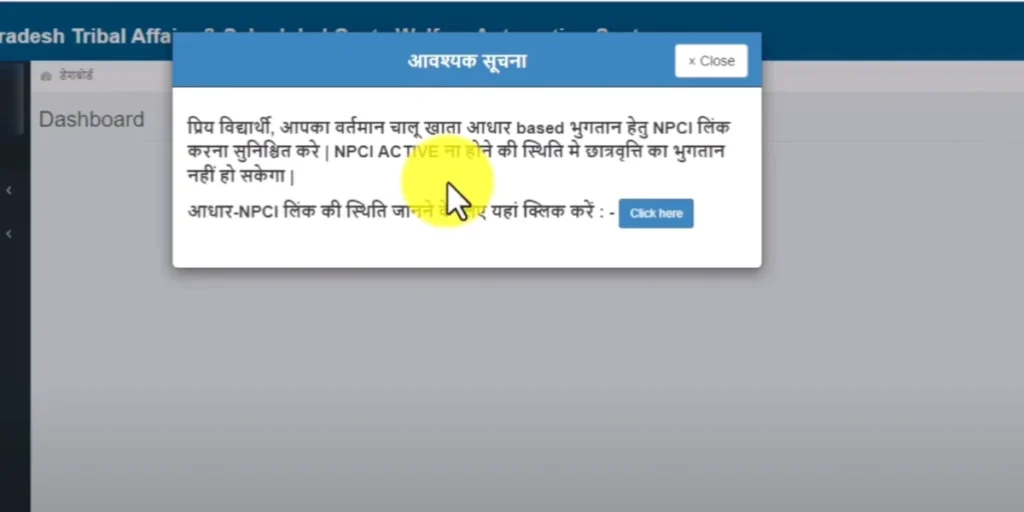
NPCI status tells you whether your bank account is correctly linked for DBT payments. If your scholarship is approved but payment has not arrived, check your NPCI status first.
Step 1: Visit myaadhaar.uidai.gov.in
Step 2: Login with your Aadhaar and OTP.
Step 3: Go to Bank Seeding Status section.
Step 4: Check which bank account is currently mapped for DBT.
Step 5: If the wrong bank account is mapped, visit your bank branch. Ask them to update your Aadhaar seeding to the correct account.
Step 6: Also check NPCI status on the MPTAAS portal itself. Go to your profile section and look for bank verification status.
Common NPCI issues:
- Bank account not Aadhaar-linked
- Old or closed account still mapped on NPCI
- Name mismatch between Aadhaar and bank account
- Account inactive due to no transactions for 2 years
Resolve NPCI issues at your bank branch before contacting the scholarship helpline.
How to Update Profile and Complete eKYC
How to Update Personal Information
Follow these steps to update your personal information:
Step 1: Login to your MPTAAS account. Visit tribal.mp.gov.in and enter your credentials.
Step 2: Go to your profile section. Look for “Edit Profile” or “Update Profile” option on your dashboard.
Step 3: Select the field you want to update.
You can update:
Step 4: Enter the correct information. Make sure it matches your official documents exactly.
Step 5: Upload supporting document if required. Some fields require document proof for changes.
Step 6: Submit the update request. Note the update request number. Changes may take 24 to 48 hours to reflect on the portal.
Note: Name, date of birth, and category changes are not allowed directly on MPTAAS. These must be corrected on your Samagra ID first at samagra.gov.in.
How to Update Bank Account Details
Updating bank details is important if you have changed your account. Wrong bank details will cause payment failure.
Follow these steps:
Step 1: Login to your MPTAAS account.
Step 2: Go to profile or bank details section.
Step 3: Click on Update Bank Details.
Step 4: Enter your new bank details:
- Account holder name
- New account number
- IFSC code
- Bank name and branch
Step 5: Verify via OTP sent to your registered mobile number.
Step 6: Submit the update. After updating bank details, also update NPCI seeding at your bank branch. Both must match for successful DBT payment.
Important: Account must be in the student’s own name. The name must match Aadhaar exactly.
How to Complete Aadhaar eKYC: Mandatory from 2025
eKYC is mandatory for all MPTAAS applicants from 2025 onwards. Without completed eKYC, your scholarship will not be processed.
eKYC links your Aadhaar identity with your MPTAAS profile. It confirms that the applicant is a real and verified person.
Two methods are available for eKYC:
Step 1: Login to your MPTAAS account.
Step 2: Go to eKYC section on your dashboard.
Step 3: Enter your 12-digit Aadhaar number.
Step 4: Click Send OTP. OTP will be sent to your Aadhaar-linked mobile number.
Step 5: Enter the OTP in the required field.
Step 6: Your Aadhaar details will appear on screen. Verify that all details are correct.
Step 7: Confirm and submit. eKYC status will show as Verified after completion.
Reasons eKYC Fails and How to Fix
These are common reasons why eKYC fails:
Reason 1: Mobile number not linked to Aadhaar.
Fix: Visit nearest Aadhaar enrollment center. Update your mobile number on Aadhaar first. Then attempt eKYC again.
Reason 2: Name mismatch between Aadhaar and Samagra ID.
Fix: Correct the name on either Aadhaar or Samagra ID. Both must match exactly before eKYC can succeed.
Reason 3: Wrong Aadhaar number entered.
Fix: Check your Aadhaar card carefully. Enter all 12 digits correctly. Reason 4: OTP expired before entry. Fix: OTP is valid for 10 minutes only. Enter it immediately after receiving. Request a new OTP if expired.
Reason 5: Too many failed attempts.
Fix: Portal locks after multiple failed eKYC attempts. Wait 24 hours before trying again. Reason 6: Aadhaar server down. Fix: This is a temporary issue. Try again after a few hours. Early morning attempts usually have fewer server issues.
What to Do if eKYC is Rejected
If your eKYC is rejected, follow these steps:
Step 1: Check the rejection reason. The portal will show a reason for rejection on your dashboard.
Step 2: Fix the issue mentioned.
Common fixes:
- Correct name on Samagra ID
- Update mobile on Aadhaar
- Visit CSC for biometric eKYC
Step 3: Attempt eKYC again after fixing the issue.
Step 4: If eKYC is rejected repeatedly, visit your nearest Gram Panchayat or Ward Office. They can assist with manual verification.
Step 5: Contact the MPTAAS helpline if the problem continues. Provide your Application ID and Samagra Member ID when calling.
Do not submit your scholarship application without completing eKYC successfully. An incomplete eKYC will result in application rejection.
How to Recover MPTAAS Login ID or Password
Forgot Password: Reset via OTP
Follow these steps to reset your forgotten password:
Step 1: Visit tribal.mp.gov.in Open the official portal in your browser.
Step 2: Click on the Login button. Go to the student login page.
Step 3: Look for “Forgot Password” option below the login form. Click on it.
Step 4: Enter your User ID in the required field.
Step 5: Enter your registered mobile number.
Step 6: Complete the captcha if shown on screen.
Step 7: Click Send OTP. An OTP will be sent to your registered mobile number.
Step 8: Enter the OTP in the required field.
Step 9: Enter your new password. Confirm the new password by entering it again.
Password requirements:
- Minimum 8 characters
- One uppercase letter
- One lowercase letter
- One number
- One special character
Step 10: Click Submit. Your password will be reset successfully. Login with your new password.
Note: OTP is valid for 10 minutes only. Enter it immediately after receiving on your mobile.
Forgot User ID: Recover Using Samagra ID
If you have forgotten your User ID, follow these steps:
Step 1: Visit tribal.mp.gov.in
Step 2: Go to the login page. Look for “Forgot User ID” option. Click on it.
Step 3: Enter your Samagra Member ID in the required field.
Step 4: Enter your registered mobile number.
Step 5: Complete the captcha.
Step 6: Click Send OTP. OTP will be sent to your registered mobile number.
Step 7: Enter the OTP.
Step 8: Your User ID will appear on screen. Note it down immediately. Save it in a secure location.
Step 9: Login using your recovered User ID and existing password.
If you have forgotten both User ID and password, recover User ID first. Then use Forgot Password to reset your password.
What to Do if Account is Locked
Your account may get locked due to these reasons:
- Too many incorrect password attempts
- Multiple failed OTP attempts
- Suspicious login activity detected
- Browser closed without logout
If your account is locked, follow these steps:
Step 1: Wait for 24 hours. Most account locks are temporary and auto-release after 24 hours.
Step 2: After 24 hours, try logging in again. Use the correct credentials this time.
Step 3: If account is still locked, use the Forgot Password option. Reset your password via OTP.
Step 4: If reset does not work, contact the MPTAAS helpline.
Provide the following details:
- Your full name
- Samagra Member ID
- Registered mobile number
- Application ID if available
Step 5: The helpline team will verify your identity. They will unlock your account after verification
When to Contact Helpline for Account Recovery
Contact the helpline in these situations:
- Account locked for more than 48 hours
- OTP not received on registered mobile
- Registered mobile number is no longer active
- User ID not found using Samagra ID
- Password reset link not working
- Account shows unusual or unauthorized activity
Before calling helpline, keep these details ready:
MPTAAS Helpline Number: Check official portal tribal.mp.gov.in for current helpline numbers. Numbers may change, always verify on official site.
How to File and Track a Grievance on MPTAAS Portal
Steps to File a Complaint Online
Follow these steps to file a grievance on the portal:
Step 1: Visit tribal.mp.gov.in Open the official portal in your browser.
Step 2: Look for the Grievance or Complaint section. It is usually available on the homepage or in your dashboard after login.
Step 3: Click on File a Grievance or Register Complaint option.
Step 4: Select your complaint category. Common categories available:
- Scholarship not received
- Application rejected without reason
- eKYC verification issue
- Institute not verifying application
- Wrong payment amount credited
- Portal technical issue
- Other scholarship related issues
Step 5: Enter your personal details. You will need:
- Full name
- Samagra Member ID
- Application ID
- Registered mobile number
- Institution name
- Category: SC, ST, or OBC
Step 6: Describe your complaint clearly. Write a short and clear description. Mention the exact problem you are facing. Include relevant dates and reference numbers if available.
Step 7: Upload supporting documents if required. Attach proof of your issue where possible. Example: Screenshot of rejected application or payment failure message.
Step 8: Submit the complaint. A Complaint Registration Number will be generated.
Note: this number immediately. You will need it to track your complaint status.
Steps to Track Complaint Status
Follow these steps to track your grievance status:
Step 1: Visit tribal.mp.gov.in
Step 2: Go to the Grievance or Complaint section.
Step 3: Click on Track Complaint or Check Grievance Status option.
Step 4: Enter your Complaint Registration Number.
Step 5: Enter your registered mobile number or Samagra ID.
Step 6: Complete captcha if shown on screen.
Step 7: Click Search or Check Status.
Step 8: Your complaint status will appear on screen.
Complaint status types:
If status shows Rejected, check the reason given. File a new complaint with correct information if needed.
When to Escalate to Helpline or College
Escalate your complaint in these situations:
- Institute verification is pending for more than 15 days
- College is not responding to your application
- You need institute documents for grievance filing
- Grievance not resolved within 30 days
- Payment not received after department approval
- eKYC rejected multiple times
- Account access issues not resolved online
- Application stuck at department level for more than 30 days
- Helpline does not resolve the issue
- Multiple complaints filed but no action taken
- Payment credited to wrong bank account
- Complaint Registration Number
- Application ID
- Samagra Member ID
- Previous communication details
Expected Resolution Timeline
These are general timelines for grievance resolution:
Portal technical issues: Expected resolution: 3 to 7 days
Institute verification delay: Expected resolution: 7 to 15 days
Payment not received after approval: Expected resolution: 15 to 30 days
eKYC rejection issues: Expected resolution: 7 to 14 days
Wrong payment credited: Expected resolution: 30 to 45 days
Account access issues: Expected resolution: 1 to 3 days
Note: These are general estimates. Actual resolution time may vary. Always follow up if resolution takes longer than expected. Contact helpline with your Complaint Registration Number for follow up.
Important Dates for MPTAAS Scholarship 2026-27
Fresh Application Opening Date
The fresh application window for 2026-27 usually opens after the start of the new academic year. This is typically between July and September each year.
Students should check the official portal regularly for the exact opening date. Visit tribal.mp.gov.in for the current year announcement.
Do not wait for the last date. Apply as soon as the application window opens. Early applications have more time for corrections and institute verification.
Last Date for Fresh Application
The last date for fresh applications varies each year. It is announced on the official portal tribal.mp.gov.in.
General timeline based on previous years:
Note: These dates are based on previous year patterns. Exact dates for 2026-27 will be announced on tribal.mp.gov.in. Always verify current dates on the official portal.
Renewal Deadline
Renewal applications for continuing students also have a separate deadline.
- Around the same time as fresh applications
- Usually between July and September each year
- Usually between October and November each year
Students in 2nd year or above must complete renewal before the deadline.
Missing the renewal deadline means losing scholarship for that academic year. Renewal cannot be accepted after the deadline has passed.
Submit renewal at least two weeks before the last date. This gives time to fix any errors or missing documents.
Note: Always Verify Dates on Official Portal
All dates mentioned in this guide are based on previous year patterns. Exact dates for 2026-27 may be different.
Always check tribal.mp.gov.in for confirmed and updated dates.
Important reminders about dates:
- Deadline extensions are rare. Do not rely on extensions.
- Apply well before the deadline. Portal traffic is high on the last date. This can cause submission errors.
- Set a reminder on your phone for the application deadline.
- Ask your college coordinator for the current year deadline. Colleges receive official circulars from the department.
- Check the portal at least once every two weeks during the application season.
Missing the deadline means waiting for the next academic year. No exceptions are made for late submissions in most cases.
Common MPTAAS Portal Errors and Solutions
Login Error or Server Issue
Problem: Portal shows login error or page does not load.
Possible causes:
- Wrong User ID or password entered
- Portal server is busy or down
- Browser cache causing conflict
- Unstable internet connection
Solutions:
Step 1: Check your User ID and password carefully. Password is case sensitive.
Step 2: Clear your browser cache. Press Ctrl + Shift + Delete. Select All Time as the time range. Clear cache and cookies. Try logging in again.
Step 3: Try a different browser. Use Chrome or Firefox for best results.
Step 4: Check your internet connection. Switch from WiFi to mobile data or vice versa.
Step 5: Try logging in during off-peak hours. Early morning between 6 AM and 9 AM works best. Portal traffic is low during these hours.
Step 6: If portal is completely down, wait for 2 to 3 hours and try again.
Government portals sometimes have scheduled maintenance.
Samagra ID Not Verified
Problem: Portal shows Samagra ID is invalid or not verified.
Possible causes:
- Wrong ID type entered
- Samagra ID not eKYC verified
- Aadhaar not linked to Samagra ID
- Name mismatch on records
Solutions:
Step 1: Check that you are entering the 9-digit Member ID. Do not enter the 8-digit Family ID. These are two different numbers.
Step 2: Visit samagra.gov.in to verify your Samagra ID(Complete Samagra ID Guide 2026). Check that your details are correct and complete.
Step 3: Check your eKYC status on samagra.gov.in. Samagra eKYC must be completed before MPTAAS registration.
Step 4: Check that your Aadhaar is linked to your Samagra ID. If not linked, complete eKYC on samagra.gov.in first.
Step 5: Check for name mismatch between Aadhaar and Samagra ID. Both must have exactly the same name spelling.
Get corrections done before attempting registration again.
eKYC Failed
Problem: eKYC verification fails on the portal.
Possible causes:
- Mobile not linked to Aadhaar
- Name mismatch between records
- Wrong Aadhaar number entered
- OTP expired before entry
- Too many failed attempts
- Aadhaar server temporarily down
Solutions:
Step 1: Check that your mobile number is linked to Aadhaar. Visit myaadhaar.uidai.gov.in to verify mobile linkage.
Step 2: Check name spelling on both Aadhaar and Samagra ID. They must match exactly. Get corrections done first if there is a mismatch.
Step 3: Enter your Aadhaar number carefully. Check all 12 digits are correct.
Step 4: Enter OTP immediately after receiving it. OTP expires in 10 minutes.
Step 5: If too many failed attempts, wait 24 hours before trying again. Portal temporarily locks eKYC after multiple failures.
Step 6: If OTP method keeps failing, visit nearest CSC center for biometric eKYC.
Carry your Aadhaar card.
Form Not Submitting
Problem: Application form does not submit after clicking Submit button.
Possible causes:
- Mandatory fields left empty
- Document upload incomplete
- File size exceeds limit
- Browser or internet issue
- Session timeout
Solutions:
Step 1: Check all mandatory fields. Fields marked with asterisk (*) are compulsory. Fill every required field before submitting.
Step 2: Check all document uploads. Every required document must be uploaded successfully. A green tick or confirmation should appear after each upload.
Step 3: Check file sizes. Each file must be under 200KB. Convert and compress files if they are too large.
Step 4: Do not click Submit multiple times. Click once and wait for the page to respond. Multiple clicks can cause errors.
Step 5: If session has timed out, login again. Check application history first before resubmitting. Your form may have been saved automatically.
Step 6: Try submitting from a desktop or laptop. Mobile browsers sometimes cause submission errors.
OTP Not Received
Problem: OTP does not arrive on registered mobile number.
Possible causes:
- Wrong mobile number registered
- Network signal issue
- Mobile inbox full
- SMS blocked by phone settings
- Aadhaar mobile not active
Solutions:
Step 1: Check that you are waiting on the correct mobile. The OTP goes to the number registered on the portal or linked to Aadhaar.
Step 2: Check network signal. Move to an area with better signal strength.
Step 3: Wait 2 to 3 minutes. OTP sometimes arrives with a slight delay.
Step 4: Check if SMS inbox is full. Delete old messages and wait for OTP to arrive.
Step 5: Check if SMS is blocked by phone settings. Go to phone settings and allow SMS from unknown numbers.
Step 6: Use the Resend OTP option on the portal. Wait at least 2 minutes before requesting again.
Step 7: If mobile number linked to Aadhaar is no longer active, visit Aadhaar enrollment center to update mobile number first.
How to Correct Incorrect Details
Problem: Wrong details entered in the application form.
Solutions depend on the stage of your application:
- Edit the form directly.
- Correct all wrong details.
- Upload correct documents.
- Then submit the application.
- Login to your account.
- Go to application history.
- Check if edit option is available.
- If available, make corrections and resubmit.
- Contact your college coordinator.
- Ask them to send application back for correction.
- Make corrections after they return the application.
- Resubmit with correct details.
- These cannot be changed directly on MPTAAS.
- Correct them on Samagra ID first.
- Then contact MPTAAS helpline to update your profile.
When to Contact Helpline or College
- Institute verification pending for more than 15 days
- Need documents from institution
- Application returned for correction
- Fee receipt details need to be confirmed
- Portal not working for more than 24 hours
- eKYC failing repeatedly
- Payment not received after 90 days of approval
- Account locked for more than 48 hours
- Application stuck at department level
- Helpline not resolving issue
- Payment credited to wrong bank account
- Multiple complaints filed with no resolution
- Full name
- Samagra Member ID
- Application ID
- Category: SC, ST, or OBC
- Institution name
- Description of the problem
- Any complaint or reference numbers
Important Warnings: Avoid Fake Portals
The MPTAAS portal is a government platform. It is only available at tribal.mp.gov.in. Many fake websites copy the look of the official portal. These sites can steal your personal information and login credentials. Always follow these rules to stay safe online.
The only official MPTAAS portal address is tribal.mp.gov.in. Always type this URL directly in your browser address bar. Do not search on Google and click any random result. Search results sometimes show unofficial or copied websites. Before entering any details, check the URL carefully. It must start with: https://tribal.mp.gov.in If the URL looks different or has extra words, close the page immediately. Do not enter any information on that page.
Never share your MPTAAS User ID or password with anyone. This includes:
- Friends or classmates
- Cyber cafe operators
- People offering to help fill your form
- Anyone claiming to be from the government
The official MPTAAS portal will never ask for your password by phone, SMS, email, or WhatsApp. If anyone asks for your login details, refuse immediately. Report such incidents to the MPTAAS helpline. After using the portal, always click Logout. Do not just close the browser tab. Closing without logout can leave your account accessible to others.
Once your application is submitted, changes are difficult to make. Before clicking Submit, check every field carefully:
- Name spelling matches Aadhaar
- Date of birth is correct
- Category is correctly selected
- Course and institution details are accurate
- Bank account number is entered correctly
- IFSC code is correct
- All documents are uploaded and clearly visible
- Fee receipt details are accurate
A single wrong detail can cause:
- Application rejection
- Payment failure
- Verification delays
- Need to file a grievance
Take your time before submitting. It is better to spend extra minutes checking than to deal with correction issues later
Many websites claim to offer MPTAAS scholarship services. These include:
- Sites offering to fill your application for a fee
- Portals claiming to check your status faster
- Websites asking you to register through them
- Apps not listed on the official government portal
None of these are authorized by the government. All MPTAAS services are free.
The official portal charges no fees for registration, application, or status check. If any website or person asks for payment to process your MPTAAS scholarship, it is a scam. Do not pay any amount. Report it to the helpline.
Only use tribal.mp.gov.in for all MPTAAS related tasks.
Some websites publish fake helpline numbers for MPTAAS. Calling these numbers can put your personal information at risk. Always get helpline numbers from the official portal only. Visit tribal.mp.gov.in and go to the Contact Us section. Use only the numbers listed there.
The official Samagra helpline is 0755-2700800. Always verify current MPTAAS helpline numbers on tribal.mp.gov.in directly. Numbers may change, always check the official site.
Official MPTAAS Helpline and Contact Details
Helpline Numbers
These are the official contact numbers for MPTAAS support:
Tribal Welfare Department MP:
Samagra Helpline (for Samagra ID issues):
Note: Always verify current helpline numbers on the official portal tribal.mp.gov.in. Numbers may be updated from time to time.
Helpline availability:
Calls are not attended on government holidays. Try calling during morning hours for faster response.
Official Email Addresses
For written complaints and document, related issues, use these official email addresses:
Tribal Welfare Department: [email protected]
Samagra Support: [email protected]
When sending an email, include these details:
- Full name
- Samagra Member ID
- Application ID
- Category: SC, ST, or OBC
- Institution name
- Mobile number
- Clear description of the issue
- Attach relevant screenshots or documents
Keep your email short and clear. Mention your complaint number if you have already filed a grievance on the portal.
Response time is generally 3 to 7 working days. Follow up if you do not receive a response within 7 working days.
Grievance Portal Link
You can file and track grievances through these official channels:
MPTAAS Portal Grievance Section: Visit tribal.mp.gov.in Go to Grievance or Complaint section Login and file your complaint.
MP Online Grievance Portal: Visit mponline.gov.in Use the grievance section for scholarship related issues.
Samadhan Portal: Visit samadhan.mp.gov.in This is the official MP government grievance redressal portal Use this for escalated complaints that are not resolved at department level.
CM Helpline: Dial 181 This is the Madhya Pradesh Chief Minister Helpline Use only for serious unresolved issues that have not been addressed through normal channels
Note: Always try the MPTAAS portal grievance section first. Escalate to Samadhan or CM Helpline only if the issue remains unresolved after 30 days.
When to Contact College or Institute
Your college or institution is your first point of contact for these issues:
- Institute verification is pending for more than 15 days
- You need a bonafide certificate or attendance certificate
- Fee receipt details need to be confirmed or corrected
- Your application was returned by institute for correction
- You need help with document upload requirements
- College login is not working and affecting your verification
- Scholarship coordinator
- Student welfare office
- Principal office for escalated issues
- Printed copy of your application form
- Application ID
- Samagra Member ID
- Any error messages received on portal
- Relevant documents for verification
College staff can directly login to the MPTAAS portal and check your application status. They can also forward your application for department approval after verification is complete.
FAQs: MPTAAS Portal 2026-27
Conclusion
The MPTAAS Portal is an important resource for SC, ST, and OBC students in Madhya Pradesh. It provides financial support to help students complete their education without burden. This guide covered all major aspects of the MPTAAS portal for 2026-27. Topics covered in this guide:
- What the MPTAAS portal is and its purpose
- Scholarship amounts by category and course level
- Eligibility criteria for all categories
- Documents required for fresh and renewal applicants
- NSP and OTR registration before applying
- Step by step registration for new applicants
- Login process for existing users
- How to apply for scholarship online
- Renewal process for continuing students
- How to check scholarship status and payment stages
- Profile update and eKYC completion
- Login ID and password recovery
- Grievance filing and tracking
- Important dates for 2026-27
- Common portal errors and their solutions
- Warnings against fake portals
- Official helpline and contact details
Always use the official portal tribal.mp.gov.in for all MPTAAS related tasks. Never share your login credentials with anyone. Apply before the deadline to avoid last minute issues. If you face any problem, contact the official helpline or visit your college coordinator. All scholarship services on the official portal are free. For more guides related to Madhya Pradesh government services, read these articles:
